Learning Elm Part 1 - Setup & Tools
During the past few weeks I’ve been working on a rewrite of a webapp I use to track my expenses. The webapp is written in React, and I wanted try Elm. Though it is not finished, I liked the experience of writing Elm code. In this series I’ll try to replicate the experience of building and doing small refactors in Elm.
This approach is the one Richard Feldman uses in his Elm in Action book - so if you like that kind of learning, please read that book!
Elm chose to keep its standard library (elm/core) quite small. It is missing some of the things that you would usually find in other functional programming languages. These can be found in community packages. For example, in this post I will group some transactions by date, and instead of installing elm-community/list-extra, I used what was available in core as a personal exercise. I recommend you use List.Extra.groupWhile.
You can see a working version of this code here and the source code here.
What is Elm
Elm claims to be “A delightful language for reliable web applications” on its home page, and in its guide:
Elm is a functional language that compiles to JavaScript. It helps you make websites and web apps. It has a strong emphasis on simplicity and quality tooling.
(☝️ Emphasis in the original)
Applications written in Elm usually follow The Elm Architecture, which later inspired projects like Redux. Similar architectures pop-up everywhere and can be used in several domains. Listen to Get You a State Machine for Great Good if you are interested how they used it in the Oxide rack!
In this architecture, there is a clear division between the Elm runtime, and the JavaScript VM. Code written in Elm is functional and “free of side-effects”. Your app produces messages that it passes to the Elm runtime and it subscribes to callbacks from the Elm runtime. These callbacks are the source of modifications (the “side-effects”) to you Elm application.
Quoted directly from the link above:
Elm programs always look something like this:
The Elm program produces HTML to show on screen, and then the computer sends back messages of what is going on. “They clicked a button!” What happens within the Elm program though? It always breaks into three parts:
- Model — the state of your application
- View — a way to turn your state into HTML
- Update — a way to update your state based on messages These three concepts are the core of The Elm Architecture.
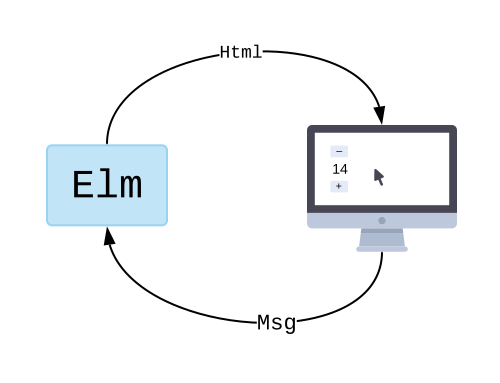
Simple enough, right? However, things that are trivial in other architectures have several more steps
in this one. Getting the current date is not “a pure-function”, each time it is invoked, it returns
a different result for the same input. Things that are one-liners in plain JavaScript like
const now = Date.now(); suddenly need to go through things like commands TO the Elm runtime
and callbacks FROM the Elm runtime.
In this side-project I wanted to give it a test. How much harder those things actually are and is it worth it?
Before we dive into the rest of this post, please note:
- I am by no means well-versed nor in Elm nor in pure functional programming! The name of the post series should give that hint! So please don’t take my Elm code as “idiomatic”, nor my solutions using functional primitives as “correct”
- Please go to The Elm Guide for a proper introduction to Elm!
Now that those formalities are out of the way, I will give you a few introduction lines here, so that you might not get totally lost when looking at all the code below if you choose not to skim through The Elm Guide.
Elm Syntax
Elm is composed basically of values. Values can be named. Functions and everything else are values.
Elm doesn’t use parenthesis when calling functions. Lets define a function that concatenates three strings and returns a string which tells “Here you are! {one} {two} {three}”
concatenateThree : String -> String -> String -> String
concatenateThree one two three =
"Here you are! " ++ one ++ " " ++ two ++ " " ++ three
You can try this in elm repl:
❯ elm repl
---- Elm 0.19.1 ----------------------------------------------------------------
Say :help for help and :exit to exit! More at <https://elm-lang.org/0.19.1/repl>
--------------------------------------------------------------------------------
> concatenateThree : String -> String -> String -> String
| concatenateThree one two three =
|   "Here you are! " ++ one ++ " " ++ two ++ " " ++ three
|
<function> : String -> String -> String -> String
> concatenateThree "I" "like" "pizza"
"Here you are! I like pizza" : String
In JavaScript:
function concatenateThree(one, two, three) {
  return `Here you are! ${one} ${two} ${three}`;
}

// alternatively

const newFancyWay = (one, two, three) => `Here you are! ${one} ${two} ${three}`;
You can also try this in node for example:
> concatenateThree("I", "like", "pizza");
'Here you are! I like pizza'
> newFancyWay("I", "like", "pizza");
'Here you are! I like pizza'
>
In Elm, functions are curried by default:
> concatenateTwo = concatenateThree "I"
<function> : String -> String -> String
> concatenateTwo "like" "pizza"
"Here you are! I like pizza" : String
This doesn’t work exactly the same in JavaScript:
> concatenateTwo = concatenateThree("I")
'Here you are! I undefined undefined'
But you can do something like this:
const concatenateTwo = (one, two) => concatenateThree("I", one, two);
Given that Elm uses spaces to separate arguments when calling functions, you’ll need parenthesis in situations like this:
> concatenateThree "I" (String.toUpper "like") "pizza"
"Here you are! I LIKE pizza" : String
The |> operator is fun to use, especially if in your past life you have used tons of piping in *nix command lines! As the documentation says:
Saying
x |> fis exactly the same asf x.
It shines when nesting calls. Imagine you have f3(f2(f1(x))), you could write it as:
f1 x |> f2 |> f3
In the REPL:
> String.length (concatenateThree "I" "like" "pizza")
26 : Int
> concatenateThree "I" "like" "pizza" |> String.length
26 : Int
> concatenateThree "I" "like" "pizza" |> String.split " "
["Here","you","are!","I","like","pizza"]
    : List String
> concatenateThree "I" "like" "pizza" |> String.split " " |> List.length
6 : Int
It is simple, but you will usually find it combined with curried functions:
- List.map has a signature of
(a -> b) -> List a -> List b - The curried version -
List.map (a -> b)then has the signature ofList a -> List b - This is now a one argument function, so it can receive my
[1,5,2,8]list:
> List.map
<function> : (a -> b) -> List a -> List b
> List.map (\n -> 2*n)
<function> : List number -> List number
> [1,5,2,8] |> List.map (\n -> n*2)
[2,10,4,16] : List number
With this random bits of information, lets move on to Part 1 of our series!
Part 1
In this part we will create a list view of a list of transactions. Given a static JSON content like this:
[
  {
    "date": "2023-12-03",
    "description": "Lunch",
    "destination": {
      "account": "Expenses:Eat Out & Take Away",
      "currency": "USD",
      "amount": 723
    },
    "source": {
      "account": "Assets:Cash",
      "currency": "USD",
      "amount": -723
    }
  }
]
Will generate a list view like this:
Sunday                       Dec 3 2024
---------------------------------------
Lunch                            $ 7.23
E:Eat Out & Take Away | A:Cash
We will also choose the basic tools, given our end-goal. So let’s get to it!
Installing Elm
You can go to the Install Elm part of their guide
for instructions on how to install Elm in your platform. In my case, I dropped the
Linux binary in my ~/bin path which I use for these type of things.
After that, typing elm will give you a friendly message:
Hi, thank you for trying out Elm 0.19.1. I hope you like it!

-------------------------------------------------------------------------------
I highly recommend working through <https://guide.elm-lang.org> to get started.
It teaches many important concepts, including how to use `elm` in the terminal.
-------------------------------------------------------------------------------

The most common commands are:

    elm repl
        Open up an interactive programming session. Type in Elm expressions like
        (2 + 2) or (String.length "test") and see if they equal four!

    elm init
        Start an Elm project. It creates a starter elm.json file and provides a
        link explaining what to do from there.

    elm reactor
        Compile code with a click. It opens a file viewer in your browser, and
        when you click on an Elm file, it compiles and you see the result.

There are a bunch of other commands as well though. Here is a full list:

    elm repl    --help
    elm init    --help
    elm reactor --help
    elm make    --help
    elm install --help
    elm bump    --help
    elm diff    --help
    elm publish --help

Adding the --help flag gives a bunch of additional details about each one.

Be sure to ask on the Elm slack if you run into trouble! Folks are friendly and
happy to help out. They hang out there because it is fun, so be kind to get the
best results!
Installing Create Elm App
My current web-app for tracking cash expenses is a PWA (progressive web-app) written in React and JavaScript, and it uses Create React App, that takes care of the boilerplate setup and makes it extremely easy to change one-line, and have a PWA: a webpage that can be “installed” on you mobile device.
Luckily for me, I looked around and found out that there is a Create Elm App inspired by it! Great, lets go install that with npm install create-elm-app -g! For node,
I like using nvm, so I did the following:
cd ~/Code
nvm use v20.10.0
npm install create-elm-app -g
create-elm-app elm-expenses
node -v > elm-expenses/.nvmrc
After that, I can go to ~/Code/elm-expenses and type elm-app start to see:
Compiled successfully!

You can now view elm-expenses in the browser.

  Local:            http://localhost:3000/
  On Your Network:  http://192.168.1.13:3000/

Note that the development build is not optimized.
To create a production build, use elm-app build.
It will helpfully open a browser and you’ll see something like:

If you click that small icon on the bottom-right, it opens the Elm Debugger:

Create Elm App generates a lot of boilerplate, including a project structure and .gitignore file, which for me
at least is always handy, specially in new environments (should I add elm-stuff/ to the repo? should I ignore it?).
Choosing a UI Framework
The next step for me was choosing what I wanted to use for the UI. I am not good at UX design, and in my previous React attempt, I chose material-ui - a React implementation of Google’s Material Design.
I tried out these options with the bare create elm app:
- Material Web - the latest iteration of Material Design
- Materialize - an older framework based on Material Design
- tailwind UI - by the makers of Tailwind CSS.
- Semantic UI - User Interface is the language of the web
And after fighting the webpack, some strange errors in the JavaScript part of their dependencies, I decided to go for the Semantic UI. Tailwind CSS is probably the most popular framework today, but I am not a CSS developer. It seems aimed at very experienced designers.
Let us take this input from tailwind UI:

<!--
  This example requires some changes to your config:


// tailwind.config.js
module.exports = {
// ...
plugins: [
// ...
require('@tailwindcss/forms'),
],
}


-->
<div>
  <label for="price" class="block text-sm font-medium leading-6 text-gray-900"
    >Price</label
  >
  <div class="relative mt-2 rounded-md shadow-sm">
    <div
      class="pointer-events-none absolute inset-y-0 left-0 flex items-center pl-3"
    >
      <span class="text-gray-500 sm:text-sm">$</span>
    </div>
    <input
      type="text"
      name="price"
      id="price"
      class="block w-full rounded-md border-0 py-1.5 pl-7 pr-20 text-gray-900 ring-1 ring-inset ring-gray-300 placeholder:text-gray-400 focus:ring-2 focus:ring-inset focus:ring-indigo-600 sm:text-sm sm:leading-6"
      placeholder="0.00"
    />
    <div class="absolute inset-y-0 right-0 flex items-center">
      <label for="currency" class="sr-only">Currency</label>
      <select
        id="currency"
        name="currency"
        class="h-full rounded-md border-0 bg-transparent py-0 pl-2 pr-7 text-gray-500 focus:ring-2 focus:ring-inset focus:ring-indigo-600 sm:text-sm"
      >
        <option>USD</option>
        <option>CAD</option>
        <option>EUR</option>
      </select>
    </div>
  </div>
</div>
The <label/> has so many classes I get dizzy just looking at them. I stopped counting the price <input/> classes at 15.
Now lets take this input from Semantic UI:

<div class="ui right labeled input">
  <label for="amount" class="ui label">$</label>
  <input type="text" placeholder="Amount" id="amount" />
  <div class="ui basic label">.00</div>
</div>
The classes are much more beginner friendly, in my opinion. They are meant to be human readable. Yes, I’d like a right labeled input, thank you very much!
At a company, I’d probably have a whole team of designers that would give me a mockup HTML and my job would be to make it dynamic. But here it is just me. So I’ll use Semantic UI for our example and cross my fingers.
I won’t lie, the complexity in setting up and building web applications is staggering! It sometimes feels like rocket science compared to backend development. I mean, I went to material-components / material-web / Quick start / Building and things move so fast, I haven’t heard of half of the things they talk about there.
Getting Semantic UI
I will take the advice from their Getting Started section and download the simpler setup ZIP file.
Simpler Setup If you are using Semantic UI as a dependency and just want to use our default theme, use our lighter semantic-ui-css or semantic-ui-less repo. If you just need the files you can download them as a zip from GitHub.
The documentation is not very clear, but you’ll need to add the CSS, the JS, and the themes folder:
cp -r semantic.min.css semantic.min.js themes/ ~/Code/elm-expenses/public/
And then add these lines to the <head> of your public/index.html:
<link rel="stylesheet" type="text/css" href="%PUBLIC_URL%/semantic.min.css" />
<script
  src="https://code.jquery.com/jquery-3.1.1.min.js"
  integrity="sha256-hVVnYaiADRTO2PzUGmuLJr8BLUSjGIZsDYGmIJLv2b8="
  crossorigin="anonymous"
></script>
<script src="%PUBLIC_URL%/semantic.min.js"></script>
If you’d like to see if it is working, you can add any component from the examples to the <body>,
I chose a simple button:
<button class="ui active button">
  <i class="user icon"></i>
  Follow
</button>
And it seems we are ready to go, you should see:

Configuring your Editor
I use VSCode lately. I recommend you install the Elm Plugin for Visual Studio Code. After that, I installed elm-format and elm-test,
and then copied/pasted the complete paths into the extension settings.
npm install -g elm-format
npm install -g elm-test
which elm-format
which elm-test
This way, each time I hit save, it auto-formats the code. Go’s auto-format won me over.
Basic App Structure
Before we start, I will initialize my git repository:
git init -b main
git add .
git commit -m "Initial commit"
I’ll start by adding the model, which right now is an empty record:
---- MODEL ----


type alias Model =
    { transactions : List Transaction
    }


type alias Transaction =
    { date : String
    , description : String
    , destination : Entry
    , source : Entry
    }


type alias Entry =
    { account : String
    , currency : String
    , amount : Int
    }
I will also create an initialModel and use it in the init function:
initialModel : Model
initialModel =
    { transactions = []
    }


init : ( Model, Cmd Msg )
init =
    ( initialModel, Cmd.none )
And I’ll add my GotTransactions (List Transaction) message. After all the JSON decoding, etc,
this will contain the data to be rendered. And before we get into the messy part of JSON decoding,
I’ll add the catch-all pattern in my update function:
---- UPDATE ----


type Msg
    = NoOp
    | GotTransactions (List Transaction)


update : Msg -> Model -> ( Model, Cmd Msg )
update msg model =
    case msg of
        GotTransactions transactions ->
            ( { model | transactions = transactions }, Cmd.none )

        _ ->
            ( model, Cmd.none )
Now we are ready to receive transactions!
The case msg of is a pattern-match. Here
we are matching against the msg : Msg which right now has only two variants:
NoOpNo operation (came with create elm app)GotTransactions (List Transaction)A message with data associated. The data has a type of “list of transactions”.
In the branch GotTransactions transactions, the name transactions is bound to the data inside the message,
and it has the type of List Transaction, as the IDE’s popup will helpfully tell you:

The { model | transactions = transactions } is Elm’s way of obtaining a copy of the model record, but
changing the transactions key with the new value. Remember, there is no mutation here!
So once the update function runs, we are returning a new instance, a new copy of the model to the Elm Runtime.
But don’t worry! They tell me it is highly optimized. It shares memory where it can, etc. etc. etc.
Receiving JSON
We’ll need to run elm install elm/json to add support for talking with JavaScript, and we’ll
also run elm install NoRedInk/elm-json-decode-pipeline to install the
elm-json-decode-pipeline
package. This last package makes it easier.
I should have probably explained this earlier, but in Elm, you can explicitly tell the compiler the types.
So if I write initialModel : Model, I am telling the compiler that Model is the type for my initialValue name. And when I write initialModel = {} I am naming that instance of the Model {}. It works similar to a const value in JavaScript.
To bring our JSON list of transactions into our Elm program, we will create these named values:
transactionDecoder : Json.Decode.Decoder Transactionwill be the one doing the real work. It will interpret our JSON value and build the Transaction recordentryDecoder : Json.Decode.Decoder Entrywill do the same, but for our Entry.decodeTransactions : Json.Decode.Value -> Result Json.Decode.Error (List Transaction)will be the actual entry function that will receive Elm’s representation of JSON and return a Result
This is the the complete decoders section:
--- DECODERS


entryDecoder : Json.Decode.Decoder Entry
entryDecoder =
    Json.Decode.succeed Entry
        |> required "account" Json.Decode.string
        |> required "currency" Json.Decode.string
        |> required "amount" Json.Decode.int


transactionDecoder : Json.Decode.Decoder Transaction
transactionDecoder =
    Json.Decode.succeed Transaction
        |> required "date" Json.Decode.string
        |> required "description" Json.Decode.string
        |> required "destination" entryDecoder
        |> required "source" entryDecoder


decodeTransactions : Json.Decode.Value -> Result Json.Decode.Error (List Transaction)
decodeTransactions jsonData =
    Json.Decode.decodeValue (Json.Decode.list transactionDecoder) jsonData
If you squint at it, you can more or less guess what it is doing, but there is a lot going on here! It basically
says the JSON object requires an "account" key, and we will use the Json.Decode.string decoder to transform
it into an Elm String, and so on. The order IS important! This is because in Elm, when you define a record, it creates
a constructor behind the scenes. Entry "Expenses:Cash" "USD" -2000 will create the record. Go try it out
in the repl!
❯ elm repl
---- Elm 0.19.1 ----------------------------------------------------------------
Say :help for help and :exit to exit! More at <https://elm-lang.org/0.19.1/repl>
--------------------------------------------------------------------------------
> type alias Entry = { account: String, currency: String, amount: Int }
> Entry "Expenses:Cash" "USD" -2000
{ account = "Expenses:Cash", amount = -2000, currency = "USD" }
    : Entry
The entry-point is the last one, and the only one that is actually a function. The others are values. They describe how to decode.
Great! But we are still a long way from rendering our transactions, unfortunately. Our next step is to create the “ports” of our application. They will be the ones through which we send and receive data to our JavaScript, through the Elm Runtime.
I’ll begin by declaring the port:
---- PORTS JS => ELM ----

port gotTransactions : (Json.Decode.Value -> msg) -> Sub msg
This now lets you call your Elm program from JavaScript! But you’ll initially get a compiler error,
because you have to declare your module as a port module in the first line of src/Main.elm:
port module Main exposing (..)
And we still need to do more plumbing! We now have to subscribe to those ports, by creating our subscriptions
and updating our program:
---- PROGRAM ----


subscriptions : Model -> Sub Msg
subscriptions _ =
    gotTransactions (decodeTransactions >> GotTransactions)

main : Program () Model Msg
main =
    Browser.element
        { view = view
        , init = \_ -> init
        , update = update
        , subscriptions = subscriptions -- PREVIOUSLY: always Sub.none
        }
And now it won’t compile again! This is because our naive GotTransactions (List Transactions) message type
should have received a Result. Elm, like Rust and other functional languages, does not have exceptions. It handles error paths
with Result types. A result is either an error, or not an error - Ok- with data.
So we need to update our Msg and update function to this:
---- UPDATE ----

type Msg
    = NoOp
    | GotTransactions (Result Json.Decode.Error (List Transaction))


update : Msg -> Model -> ( Model, Cmd Msg )
update msg model =
    case msg of
        GotTransactions (Ok transactions) ->
            ( { model | transactions = transactions }, Cmd.none )

        _ ->
            ( model, Cmd.none )
Here, we are IGNORING error paths. Because our pattern matches ONLY when we have a success version of Result. Now the compiler is happy again!
Until now, I have not mentioned src/index.js - which is the JavaScript entry point. This is the default create elm app version of it:
import "./main.css";
import { Elm } from "./Main.elm";
import * as serviceWorker from "./serviceWorker";

Elm.Main.init({
  node: document.getElementById("root"),
});

// If you want your app to work offline and load faster, you can change
// unregister() to register() below. Note this comes with some pitfalls.
// Learn more about service workers: https://bit.ly/CRA-PWA
serviceWorker.unregister();
The Elm.Main.init is calling our Main module. It actually returns an application instance. So we can change this to be:
const app = Elm.Main.init({
  node: document.getElementById("root"),
});
console.log(app.ports.gotTransactions.send);
You’ll see in your browser console: function send(val) or something of the sort. And now we are ready to send data to our Elm application!
Go ahead and change it to this:
const app = Elm.Main.init({
  node: document.getElementById("root"),
});
app.ports.gotTransactions.send([
  {
    date: "2023-12-03",
    description: "Lunch",
    destination: {
      account: "Expenses:Eat Out & Take Away",
      currency: "USD",
      amount: 723,
    },
    source: {
      account: "Assets:Cash",
      currency: "USD",
      amount: -723,
    },
  },
  {
    date: "2023-12-03",
    description: "Taxi",
    destination: {
      account: "Expenses:Public Transport",
      currency: "USD",
      amount: 1575,
    },
    source: {
      account: "Assets:Cash",
      currency: "USD",
      amount: -1575,
    },
  },
  {
    date: "2023-12-04",
    description: "Supermarket",
    destination: {
      account: "Expenses:Groceries",
      currency: "USD",
      amount: 3899,
    },
    source: {
      account: "Assets:Cash",
      currency: "USD",
      amount: -3899,
    },
  },
]);
And you should see it in your Elm debugger:

This is a lot of work, but finally. Data form JavaScript. Now we are ready for our view!
The View
The default create elm app view is this:
---- VIEW ----

view : Model -> Html Msg
view model =
    div []
        [ img [ src "/logo.svg" ] []
        , h1 [] [ text "Your Elm App is working!" ]
        ]
We’ll go ahead and delete that, just leave an empty div [] []. And we will delete all the content of src/main.css
except:
[data-elm-hot="true"] {
  height: inherit;
}
We will need one more elm package, we will run elm install cuducos/elm-format-number to make it easier to format our amounts.
The entry point to our view will be this:
view : Model -> Html Msg
view model =
    div [ class "ui container" ]
        [ viewTransactions model.transactions
        ]
This uses Html.div to basically generate this HTML:
<div class="ui container">
  <!-- content goes here -->
</div>
The first list sets attributes like class, id, etc. You’d also set you event handlers like onClick there too.
The second list are the child nodes. Pretty straight forward.
Here we are using a standard container from Semantic UI, which will contain our list of transactions.
We delegate generating that list to our viewTransactions function:
viewTransactions : List Transaction -> Html Msg
viewTransactions txns =
    div [ class "ui celled list" ] (List.map viewTransaction txns)
We are using a celled list from Semantic UI,
and inside we delegate to yet another viewTransaction function. I haven’t yet looked at
a lot of Elm code, so I don’t know if so much delegation is “idiomatic”, but it helped
me, and it will come handy later.
One thing to note, is that Semantic UI, unlike Material UI and others, uses plain divs for their lists.
I would have expected the above to be something like <ul class="ui celled">.
This is our viewTransaction function:
viewTransaction : Transaction -> Html Msg
viewTransaction txn =
    div [ class "item" ]
        [ viewDescription txn
        , viewAmount txn.destination
        ]
This renders what I would consider the “list item”, <li></li>. It will have two main blocks,
the description floated left, and the amount floated right.
Let us start with the viewDescription:
viewDescription : Transaction -> Html Msg
viewDescription txn =
    let
        source =
            accountShortName txn.source.account

        destination =
            accountShortName txn.destination.account
    in
    div [ class "left floated content" ]
        [ div [] [ text txn.description ]
        , div [ class "description" ] [ text (source ++ " ↦ " ++ destination) ]
        ]
Finally, some text! Here we have text txn.description node that renders a text node with the description.
We also build a shorter version of the accounts. The Groceries expense, which is under “Expenses:Groceries”
and was paid with “Assets:Cash” will be rendered as A:Cash ↦ E:Groceries.
The <div class="description"> is like a secondary text in a Semantic UI
list item.
The viewAccountShortName is a fun little function:
accountShortName : String -> String
accountShortName a =
    let
        parts =
            String.split ":" a |> List.reverse

        account =
            parts |> List.head |> withDefault a

        parents =
            parts |> List.tail |> withDefault [] |> List.reverse |> List.map (String.left 1)
    in
    if List.isEmpty parents then
        account

    else
        String.join ":" parents ++ ":" ++ account
- We transform
Assets:Bank:Checkingintoparts = ["Checking", "Banks", "Assets"]. - We get the first element (or the whole account name). So
account = "Checking". - The “parent” accounts are the “tail” of the list. In functional languages, lists are usually split in head item
and tail list, so
[1, 2, 3]would have anInt 1as a head and aList (2, 3)as a tail. TheList.tailfunction returns aMaybe- because a list can be empty or have only 1 element. And remember, no exceptions in Elm! So we useMaybe.withDefaultto use an empty list. We then reverse it and keep the first character. Soparents = ["A", "B"] - We create a string “A:B” by joining the parents list, and concatenate it with “:” and “Checking”.
The last expression could be rewritten like
String.join ":" (parents ++ [ account ])but I kind of like the above version better. The result is the same:A:B:Checking.
And the last viewAmount function is this:
viewAmount : Entry -> Html Msg
viewAmount entry =
    let
        amount =
            format usLocale (toFloat entry.amount / 100.0)
    in
    div [ class "right floated content" ] [ text (entry.currency ++ " " ++ amount) ]
Which should be self-explanatory, I hope! With all these functions, we are already getting there, this is the result:

We are still missing grouping by date and… well, sorting the list. This is real life, requirements come in through the window all the time. I’d like my transactions to be sorted from most recent, to least recent.
To be able to group our transactions list by date in Elm, we will need to use a
Dict. Similar to dict in Python, Map in Java, etc.
We’ll to the following:
- Transform our
List Transactioninto aDict String (List Transaction) - Transform our
Dict String (List Transaction)into aList (String, List Transaction) - Sort the list above
In JavaScript-like syntax this would look like:
const list = [ {"date": "2023-12-02", ... }, {"date": "2023-12-02", ... }, {"date": "2023-12-04", ... }]
const map = {
    "2023-12-02": [{"date": "2023-12-02", ... }, {"date": "2023-12-02", ... }],
    "2023-12-04": [{"date": "2023-12-04", ... }]
}
const by_date = [
    ["2023-12-02", [{"date": "2023-12-02", ... }, {"date": "2023-12-02", ... }]],
    ["2023-12-04", [{"date": "2023-12-04", ... }]]
]
After that, we still have a decision to make. How will our view use this? I decided to create a new type,
a ListItem. It will be either a date, or a transaction:
type ListItem
    = D String
    | T Transaction
Note that this is not a type alias, it is a brand new Elm type!
This means our model can hold a list of them, and render either a Transaction, or a date, depending on the variant of the type. We could have just stored that list, and do a list of list, flatmap or something like that, but I think I prefer this approach.
I’ll add a listItems : List ListItem to our model:
type alias Model =
    { transactions : List Transaction
    , listItems : List ListItem
    }
And fix all the errors the compiler complains about, which is only one: the initialModel needs an empty listItems list.
This is the empty implementation, using a helper function to create the listItems:
update : Msg -> Model -> ( Model, Cmd Msg )
update msg model =
    case msg of
        GotTransactions (Ok transactions) ->
            let
                listItems =
                    buildListItems transactions
            in
            ( { model | transactions = transactions, listItems = listItems }, Cmd.none )

        _ ->
            ( model, Cmd.none )


buildListItems : List Transaction -> List ListItem
buildListItems txns =
    []
To create our Dict String (List ListItem) - note that I updated this from List Transaction to List ListItem,
we will iterate the list with the handy
List.foldl function
and use the Dict.update function, that returns an updated instance of the dictionary. List.foldl is like Array.prototype.reduce() in JavaScript.
We will create our dictionary groupedByDate and use a helper function named acc (accumulate) that I’ll describe shortly.
groupedByDate : Dict String (List ListItem)
groupedByDate =
    List.foldl acc Dict.empty txns
The above means “traverse the list from left to right, calling the acc function for each value, starting with an empty dictionary”.
The acc function has the following signature:
acc : Transaction -> Dict String (List ListItem) -> Dict String (List ListItem)
Which is the typical “reduce” signature in JavaScript. You receive the current item, the current reduced value, and you return the new reduced value.
This is the implementation:
acc : Transaction -> Dict String (List ListItem) -> Dict String (List ListItem)
acc txn dict =
    Dict.update txn.date
        (\exists ->
            case exists of
                Nothing ->
                    Just [ T txn ]

                Just list ->
                    Just (T txn :: list)
        )
        dict
- Call
Dict.updatefor the tranasction’s date - The callback function receives a
Maybeand returns the UPDATEDMaybe - If the value is missing (
Nothing), create the list - If exists, then create a new list with the old list and the current item
One thing to note is the T txn syntax. This is the constructor for our brand new ListItem type!
Now that we have our dictionary of transactions grouped by date, we need to sort it and get rid of the keys:
groupedByDate : Dict String (List ListItem)
groupedByDate =
    List.foldl acc Dict.empty txns

byDate : List (List ListItem)
byDate =
    Dict.toList groupedByDate
        |> List.sortBy Tuple.first
        |> List.reverse
        |> List.map Tuple.second
Dict.toListreturns a list of(key, value)- similar to JavaScript’s Object.entries() static method. So here we have aList (String, List(ListItem))- We then use List.sortBy to obtain an ascending list of lists.
- We reverse the list to make it descending
- We discard the key and keep the values (lists of ListItems)
The final piece of the puzzle is to add the date variant of our ListItem. For this, we will kind-of map the lists, to
prepend a D date variant. We do this with the following:
listItems : List ListItem
listItems =
    List.map
        (\items ->
            case items of
                (T t) :: _ ->
                    D t.date :: items

                _ ->
                    items
        )
        byDate
        |> List.concat
- If items has at least one element (the head), we return a new list with the
D t.dateand the original list. - If not, just return the (empty) list.
- Use List.concat which “flattens” the list.
I am sure there are several other ways to achieve the above. I know Elm has a
List.sortWith
that would save me the reverse function. I could also have NOT dropped the key and in that moment
created the D date variant. Maybe I’ll refactor later, maybe not.
Great! We still have to change our view. The new view will use our freshly minted listItems:
view : Model -> Html Msg
view model =
    div [ class "ui container" ]
        [ viewListItems model.listItems
        ]


viewListItems : List ListItem -> Html Msg
viewListItems listItems =
    div [ class "ui celled list" ]
        (List.map
            (\item ->
                case item of
                    T transaction ->
                        viewTransaction transaction

                    D date ->
                        viewDate date
            )
            listItems
        )
It reuses our viewTransaction and we need a new viewDate function:
viewDate : String -> Html Msg
viewDate date =
    div [ class "item date" ] [ text date ]
We can delete the old viewTransactions function now.
I am not sure how to properly style Semantic UI yet, but I’ll add some CSS to my div.date, and
this is the final result:

Looking better! It is now time to parse that date. I am yet not sure about this decision, but I decided to add the justinmimbs/date package, and use its Date type.
This brings up a few issues down the road, but for now, I think we’ll manage.
So first, we install it with elm install justinmimbs/date, and we will change our Transaction type
to this:
-- Our new import
import Date exposing (Date)


type alias Transaction =
    { date : Date
    , description : String
    , destination : Entry
    , source : Entry
    }
The compiler will tell us to fix at least three compilation errors:
- We need to decode this new
Datetype from JSON - Building the
ListItemdate variant is broken Dateis not comparable! So we cannot use it as a dictionary key
We start by creating a dateDecoder using Date.fromIsoString.
dateDecoder : Json.Decode.Decoder Date
dateDecoder =
    Json.Decode.string
        |> Json.Decode.andThen
            (\str ->
                case Date.fromIsoString str of
                    Ok d ->
                        Json.Decode.succeed d

                    _ ->
                        Json.Decode.fail ("Invalid date " ++ str)
            )
And we will change our transactionDecoder like this:
- |> required "date" Json.Decode.string
+ |> required "date" dateDecoder
Ok, that takes care of issue #1. To fix #3, we just use
Date.toIsoString
to get the String we want:
- Dict.update txn.date
+ Dict.update (Date.toIsoString txn.date)
To fix #2, we actually WANT the date, so we need to update the type:
type ListItem
    = D Date
    | T Transaction
This of course breaks our viewDate which expected a String and is now receiving a Date, perfect!
We will use Date.format
for our refactored view:
viewDate : Date -> Html Msg
viewDate date =
    let
        dayOfWeek =
            Date.format "EEEE" date

        prettyDate =
            Date.format "d MMM y" date
    in
    div [ class "item date" ]
        [ div [ class "left floated content" ] [ text dayOfWeek ]
        , div [ class "right floated content" ] [ text prettyDate ]
        ]
And congratulations to me (and to you, dear reader, if you are still here), we are done!

Using Gemini To Generate Data
I still cannot get myself to pay USD 20 for ChatGPT 4.0, though I know I’ll eventually do it. A couple of weeks ago I tried to get ChatGPT 3.5 to generate 50 sample transactions, and I failed miserably. It kept telling me to “feel free to invent 50 more!” or to “copy and paste 50 more times!”.
This is what Gemini came up with:

As you can see, it did not generate 50, as I asked, but it did transform from CSV to JSON after I gave it an example. It did not understand the cents format, but it fixed it after I told they had a couple extra zeroes.
I wrote these prompts on my phone, so I call this a success:
PROMPT 1
I need to create some sample data. I need a list of 50 personal expenses. Each expense contains:

a date in YYYY-MM-DD formar
a description
a destination account
a source account
an amount in US dollars and cents

For example, with the destination account Expenses:Groceries I would expect descriptions like “Supermaket” or “Green Grocers”.  Under Expenses:Auto I would expect Gas, Parking.

Source accounts can be Assets:Cash, Asstes:Bank:Checking, Liabilities:CreditCard

Could you generate 50 transactions for me ?
It is not as chatty as ChatGPT:

PROMPT 2
That looks great!

Could you reformat them to be in JSON format please ?

I expect each item in the list to have this form:

```json
{
  “date”: “2024-01-12”,
  “description”: “Supermarket”,
  “destination”: {
    “account”: “Expenses:Groceries”,
    “amount”: 6799,
    “currency”: “USD”
  },
  “source”: {
    “account”: “Assets:Cash”,
    “amount”: -6799,
    “currency”: “USD”
  }
}
```

Each item has two nested Entry. Amounts are expressed in cents.
So 6799 is 67.99.
One of the entries has the negative amount so the transaction
is balanced (adds up to zero)
This is where it got the cents thing wrong, but re-reading the above… I might be at fault. I should have probably put the example like this:
So $67.99 is expressed as 6799
This was the result:

FINAL PROMPT
I think the amounts are off! You seem to have two extra zeroes.
The last transaction is also incomplete.  Could you fix these issues please?
And sure enough, it fixed the amount. The JSON was cut-off, but I completed the last transaction, closed the list, checked that it got all the positive/negative amounts correct and done! It was parsed by the Elm program above with no problem.
Conclusions from Part 1
There are several things missing in this first part:
- I have not handled the error path. If the application fails to parse the JSON, it just ignores that message in the catch-all pattern.
- I have not added any tests. Not sure if I’ll do that in part two, or part three.
- There is some code-cleanup. I don’t think the
transactionsin the model is being used.
So far the most cumbersome part was by far parsing JSON. Other than that, the Elm compiler
is great during refactors. The tooling works very well. And I am loving that |> syntax!
I see that Elm chose not to include several
Truth be told, I already have a working version of my React webapp using Elm, which loads data from the same encrypted CouchDB. It is still missing some things, so I am cheating a bit in this series. It is certainly NOT live coding!
I hope you enjoyed Part 1!